Markdown Reference
Download
Markdown 1.0.1 (18 KB) -- 17 Dec 2004
Phrase Emphasis
Markdown uses asterisks and underscores to indicate spans of emphasis.
Markdown:
Some of these words *are emphasized*.
Some of these words _are emphasized also_.
Use two asterisks for **strong emphasis**.
Or, if you prefer, __use two underscores instead__.
Output:
<p>Some of these words <em>are emphasized</em>.
Some of these words <em>are emphasized also</em>.</p>
<p>Use two asterisks for <strong>strong emphasis</strong>.
Or, if you prefer, <strong>use two underscores instead</strong>.</p>
Lists
Unordered (bulleted) lists use asterisks, pluses, and hyphens (*,
+, and -) as list markers. These three markers are
interchangable; this:
*   Candy.
*   Gum.
*   Booze.
this:
+   Candy.
+   Gum.
+   Booze.
and this:
-   Candy.
-   Gum.
-   Booze.
all produce the same output:
<ul>
<li>Candy.</li>
<li>Gum.</li>
<li>Booze.</li>
</ul>
Ordered (numbered) lists use regular numbers, followed by periods, as list markers:
1.  Red
2.  Green
3.  Blue
Output:
<ol>
<li>Red</li>
<li>Green</li>
<li>Blue</li>
</ol>
If you put blank lines between items, you'll get <p> tags for the
list item text. You can create multi-paragraph list items by indenting
the paragraphs by 4 spaces or 1 tab:
*   A list item.
    With multiple paragraphs.
*   Another item in the list.
Output:
<ul>
<li><p>A list item.</p>
<p>With multiple paragraphs.</p></li>
<li><p>Another item in the list.</p></li>
</ul>
Links
Markdown supports two styles for creating links: inline and reference. With both styles, you use square brackets to delimit the text you want to turn into a link.
Inline-style links use parentheses immediately after the link text. For example:
This is an [example link](http://example.com/).
Output:
<p>This is an <a href="http://example.com/">
example link</a>.</p>
Optionally, you may include a title attribute in the parentheses:
This is an [example link](http://example.com/ "With a Title").
Output:
<p>This is an <a href="http://example.com/" title="With a Title">
example link</a>.</p>
Reference-style links allow you to refer to your links by names, which you define elsewhere in your document:
I get 10 times more traffic from [Google][1] than from
[Yahoo][2] or [MSN][3].
[1]: http://google.com/        "Google"
[2]: http://search.yahoo.com/  "Yahoo Search"
[3]: http://search.msn.com/    "MSN Search"
Output:
<p>I get 10 times more traffic from <a href="http://google.com/"
title="Google">Google</a> than from <a href="http://search.yahoo.com/"
title="Yahoo Search">Yahoo</a> or <a href="http://search.msn.com/"
title="MSN Search">MSN</a>.</p>
The title attribute is optional. Link names may contain letters, numbers and spaces, but are not case sensitive:
I start my morning with a cup of coffee and
[The New York Times][NY Times].
[ny times]: http://www.nytimes.com/
Output:
<p>I start my morning with a cup of coffee and
<a href="http://www.nytimes.com/">The New York Times</a>.</p>
Images
Image syntax is very much like link syntax.
Inline (titles are optional):

Reference-style:
![alt text][id]
[id]: /path/to/img.jpg "Title"
Both of the above examples produce the same output:
<img src="/path/to/img.jpg" alt="alt text" title="Title" />
Code
In a regular paragraph, you can create code span by wrapping text in
backtick quotes. Any ampersands (&) and angle brackets (< or
>) will automatically be translated into HTML entities. This makes
it easy to use Markdown to write about HTML example code:
I strongly recommend against using any `<blink>` tags.
I wish SmartyPants used named entities like `—`
instead of decimal-encoded entites like `—`.
Output:
<p>I strongly recommend against using any
<code><blink></code> tags.</p>
<p>I wish SmartyPants used named entities like
<code>—</code> instead of decimal-encoded
entites like <code>—</code>.</p>
To specify an entire block of pre-formatted code, indent every line of
the block by 4 spaces or 1 tab. Just like with code spans, &, <,
and > characters will be escaped automatically.
Markdown:
If you want your page to validate under XHTML 1.0 Strict,
you've got to put paragraph tags in your blockquotes:
    <blockquote>
        <p>For example.</p>
    </blockquote>
Output:
<p>If you want your page to validate under XHTML 1.0 Strict,
you've got to put paragraph tags in your blockquotes:</p>
<pre><code><blockquote>
    <p>For example.</p>
</blockquote>
</code></pre>
Introduction
Markdown is a text-to-HTML conversion tool for web writers. Markdown allows you to write using an easy-to-read, easy-to-write plain text format, then convert it to structurally valid XHTML (or HTML).
The following is a block quote:
Thus, "Markdown" is two things: (1) a plain text formatting syntax; and (2) a software tool, written in Perl, that converts the plain text formatting to HTML. See the Syntax page for details pertaining to Markdown's formatting syntax. You can try it out, right now, using the online Dingus.
The overriding design goal for Markdown's formatting syntax is to make it as readable as possible. The idea is that a Markdown-formatted document should be publishable as-is, as plain text, without looking like it's been marked up with tags or formatting instructions. While Markdown's syntax has been influenced by several existing text-to-HTML filters, the single biggest source of inspiration for Markdown's syntax is the format of plain text email.
The best way to get a feel for Markdown's formatting syntax is simply to look at a Markdown-formatted document. For example, you can view the Markdown source for the article text on this page here: http://daringfireball.net/projects/markdown/index.text
(You can use this '.text' suffix trick to view the Markdown source for the content of each of the pages in this section, e.g. the Syntax and License pages.)
Markdown is free software, available under a BSD-style open source license. See the License page for more information.
Discussion List
I've set up a public mailing list for discussion about Markdown. Any topic related to Markdown -- both its formatting syntax and its software -- is fair game for discussion. Anyone who is interested is welcome to join.
It's my hope that the mailing list will lead to good ideas for future improvements to Markdown.
Installation and Requirements
Markdown requires Perl 5.6.0 or later. Welcome to the 21st Century. Markdown also requires the standard Perl library module Digest::MD5, which is probably already installed on your server.
Movable Type
Markdown works with Movable Type version 2.6 or later (including Movable Type 3.0).
Copy the "Markdown.pl" file into your Movable Type "plugins" directory. The "plugins" directory should be in the same directory as "mt.cgi"; if the "plugins" directory doesn't already exist, use your FTP program to create it. Your installation should look like this:
(mt home)/plugins/Markdown.plOnce installed, Markdown will appear as an option in Movable Type's Text Formatting pop-up menu. This is selectable on a per-post basis:
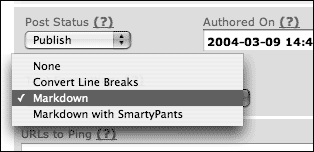
Markdown translates your posts to HTML when you publish; the posts themselves are stored in your MT database in Markdown format.
If you also install SmartyPants 1.5 (or later), Markdown will offer a second text formatting option: "Markdown With SmartyPants". This option is the same as the regular "Markdown" formatter, except that it automatically uses SmartyPants to create typographically correct curly quotes, em-dashes, and ellipses. See the SmartyPants web page for more information.
To make Markdown (or "Markdown With SmartyPants") your default text formatting option for new posts, go to Weblog Config: Preferences.
Note that by default, Markdown produces XHTML output. To configure Markdown to produce HTML 4 output, see "Configuration", below.
Blosxom
Markdown works with Blosxom version 2.0 or later.
Rename the "Markdown.pl" plug-in to "Markdown" (case is important). Movable Type requires plug-ins to have a ".pl" extension; Blosxom forbids it.
Copy the "Markdown" plug-in file to your Blosxom plug-ins folder. If you're not sure where your Blosxom plug-ins folder is, see the Blosxom documentation for information.
That's it. The entries in your weblog will now automatically be processed by Markdown.
If you'd like to apply Markdown formatting only to certain posts, rather than all of them, Markdown can optionally be used in conjunction with Blosxom's Meta plug-in. First, install the Meta plug-in. Next, open the Markdown plug-in file in a text editor, and set the configuration variable
$g_blosxom_use_metato 1. Then, simply include a "meta-markup: Markdown" header line at the top of each post you compose using Markdown.
BBEdit
Markdown works with BBEdit 6.1 or later on Mac OS X. It also works with BBEdit 5.1 or later and MacPerl 5.6.1 on Mac OS 8.6 or later. If you're running Mac OS X 10.2 (Jaguar), you may need to install the Perl module Digest::MD5 from CPAN; Digest::MD5 comes pre-installed on Mac OS X 10.3 (Panther).
Copy the "Markdown.pl" file to appropriate filters folder in your "BBEdit Support" folder. On Mac OS X, this should be:
BBEdit Support/Unix Support/Unix Filters/See the BBEdit documentation for more details on the location of these folders.
You can rename "Markdown.pl" to whatever you wish.
That's it. To use Markdown, select some text in a BBEdit document, then choose Markdown from the Filters sub-menu in the "#!" menu, or the Filters floating palette
Configuration
By default, Markdown produces XHTML output for tags with empty elements. E.g.:
<br />
Markdown can be configured to produce HTML-style tags; e.g.:
<br>
Movable Type
You need to use a special MTMarkdownOptions container tag in each
Movable Type template where you want HTML 4-style output:
<MTMarkdownOptions output='html4'>
    ... put your entry content here ...
</MTMarkdownOptions>
The easiest way to use MTMarkdownOptions is probably to put the
opening tag right after your <body> tag, and the closing tag right
before </body>.
To suppress Markdown processing in a particular template, i.e. to
publish the raw Markdown-formatted text without translation into
(X)HTML, set the output attribute to 'raw':
<MTMarkdownOptions output='raw'>
    ... put your entry content here ...
</MTMarkdownOptions>
Command-Line
Use the --html4tags command-line switch to produce HTML output from a
Unix-style command line. E.g.:
% perl Markdown.pl --html4tags foo.text
Type perldoc Markdown.pl, or read the POD documentation within the
Markdown.pl source code for more information.
Acknowledgements
Aaron Swartz deserves a tremendous amount of credit for his feedback on the design Markdown's formatting syntax. Markdown is much better thanks to Aaron's ideas, feedback, and testing. Also, Aaron's html2text is a very handy (and free) utility for turning HTML into Markdown-formatted plain text.
Nathaniel Irons, Dan Benjamin, Daniel Bogan, and Jason Perkins also deserve thanks for their feedback.
Michel Fortin has ported Markdown to PHP; it's a splendid port, and highly recommended for anyone looking for a PHP implementation of Markdown.